HubSpot Intgration with VOYCELL

VOYCELL + HubSpot Integration Setup Guide

VOYCELL + HubSpot Integration Setup Guide

This guide walks you through installing and configuring the Voycell integration with HubSpot. With this integration, your call data and customer interactions are automatically synced into HubSpot.

Data synced from VOYCELL to HubSpot:
  • Contact Name
  • Phone Number
  • Meeting Details
  • Call Notes

1. Install VOYCELL Integration

Step 1: Log in to your HubSpot account.
Step 2: Navigate to the HubSpot App Marketplace.
Step 3: Search for VOYCELL.
Step 4: Click Install App.

2. Connect Your VOYCELL Account

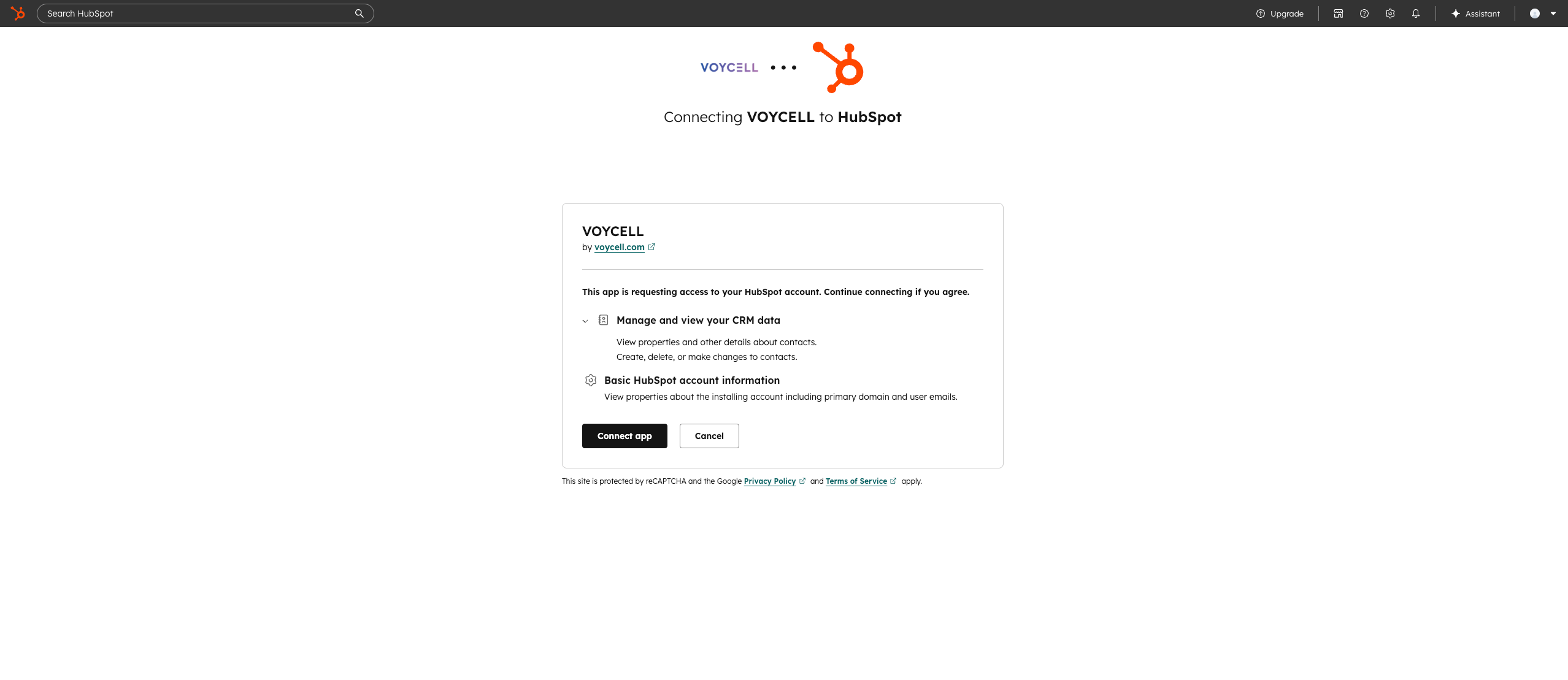
Step 1: After installation, you will be redirected to VOYCELL authorization page.
Step 2: Log in to your VOYCELL account.
Step 3: Grant required permissions to HubSpot.
Install Voycell App

Connect HubSpot from the VOYCELL

3. Configure Data Sync

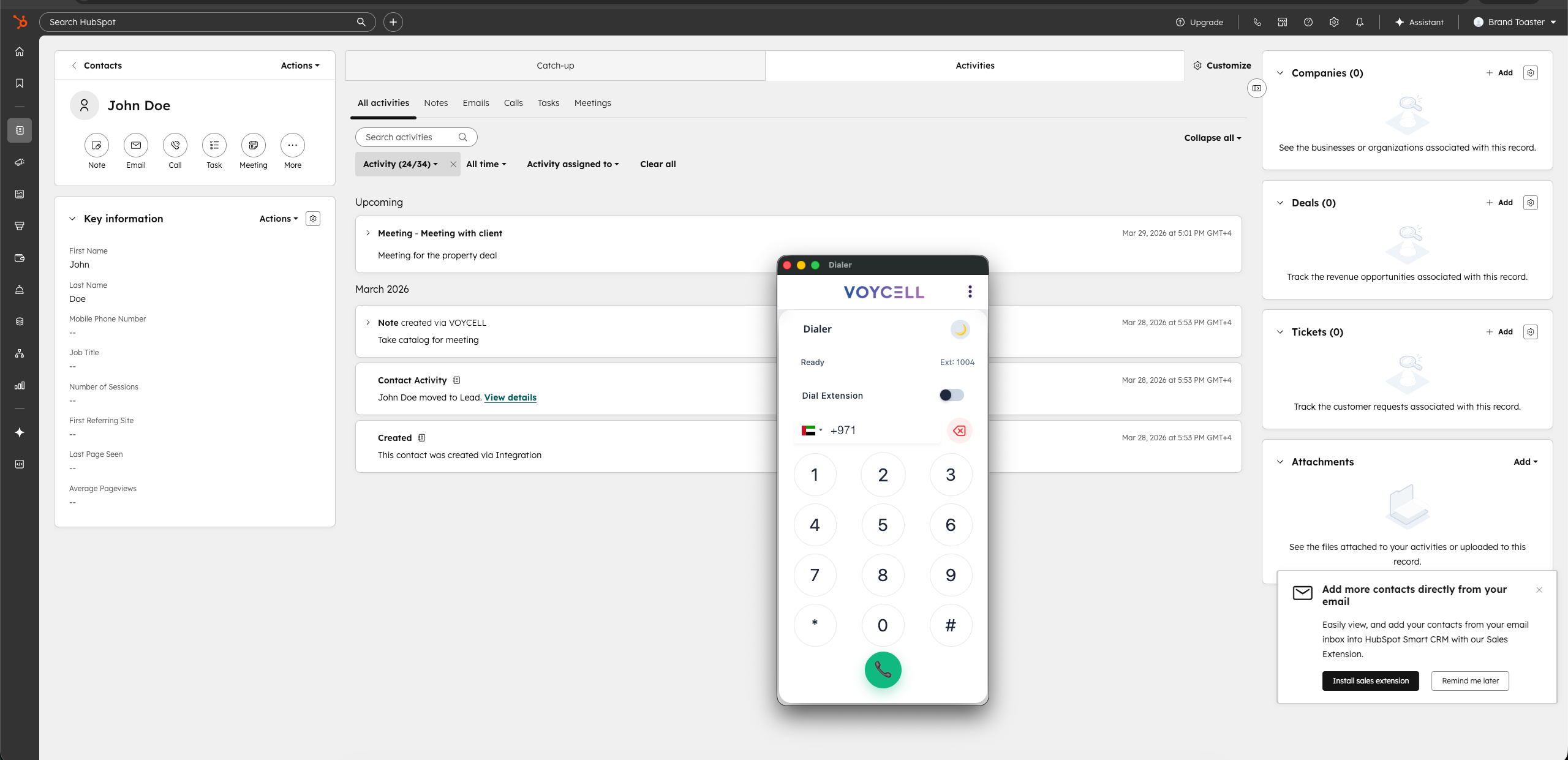
Once connected, Voycell will automatically sync your data after the call into HubSpot.
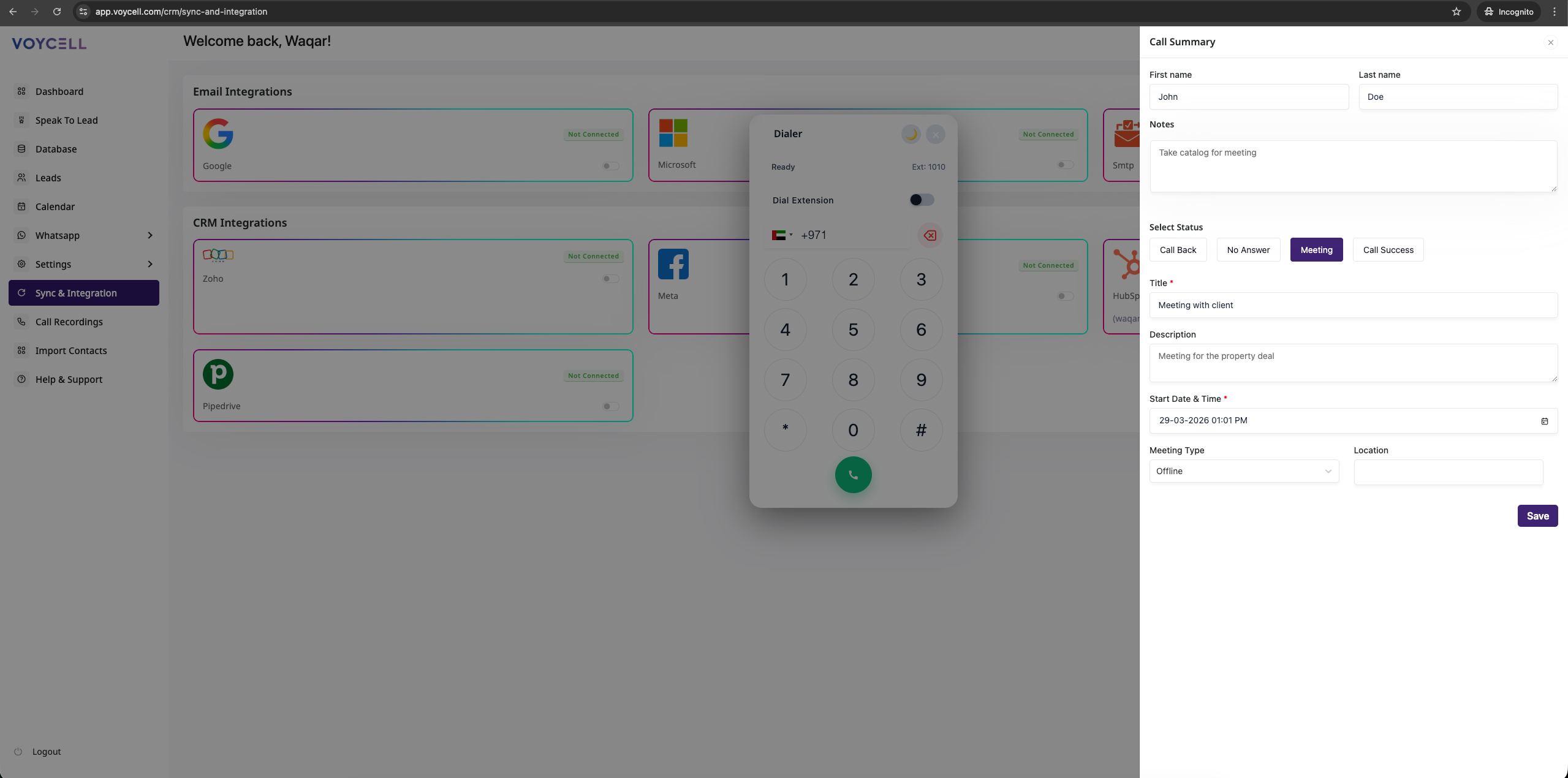
• Contacts: Name and phone number will create or update contacts in HubSpot.
• Meetings: Meeting details will be logged as activities.
• Notes: Call notes will be added to the contact.
Install Voycell App

Call summary

4. How the Integration Works

After setup, every interaction handled in VOYCELL is automatically reflected inside HubSpot:

  • New calls create or update contacts
  • Meetings are logged as activities
  • Notes are attached to contact records
Install Voycell App

Data Sync to HubSpot

5. Disconnect HubSpot Integration

If you need to stop syncing your data between Voycell and HubSpot, follow these steps to disconnect directly from Voycell.

Step 1: Log in to your Voycell account.
Step 2: Navigate to Sync & Integrations from the main menu.
Step 3: Find HubSpot in the list of connected integrations.
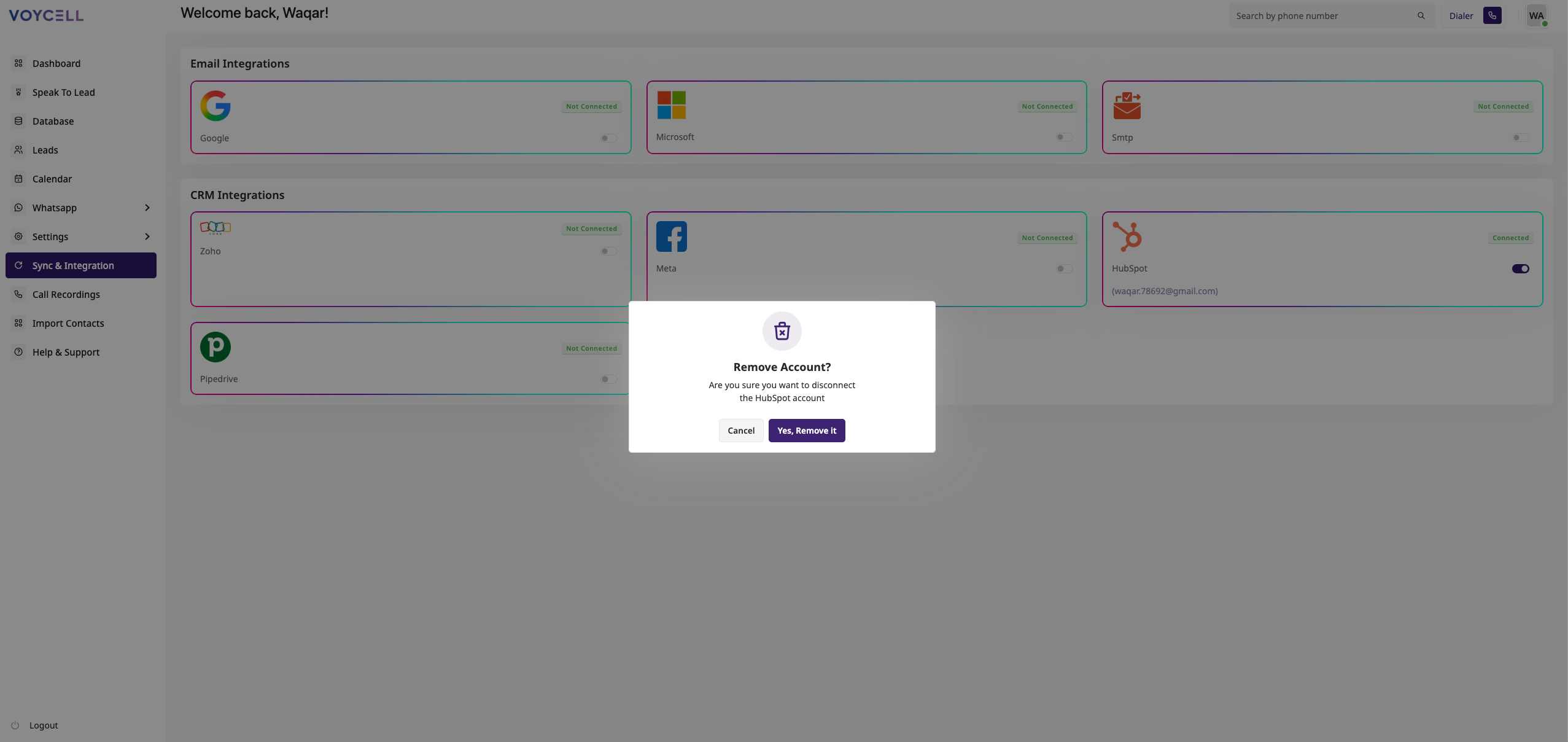
Step 4: Click the toggle switch to disconnect HubSpot.
Step 5: Confirm the disconnection in the popup.
Note: Disconnecting will immediately stop all future syncing of contacts, meetings, and notes. Existing data already synced in HubSpot will remain intact.
Disconnect HubSpot Integration from Voycell

Disconnect HubSpot Integration from VOYCELL

6. User Journey Example

  1. A customer calls via Voycell
  2. Voycell captures the caller's name and number
  3. A meeting, notes are added in the HubSpot CRM
  4. All data is instantly synced to HubSpot

7. Support

If you need help, contact our support team:

📧 support@voycell.com
🌐 https://voycell.com/voycell-contact-us/

Share it

Leave a comment

Your email address will not be published. Required fields are marked *

Sign up our newsletter to get update information, news and free insight.

Latest Post